

Installation
Download SMTPly-Setup-latest.exe from the download area. Run the installer as administrator. The wizard guides you through four steps — in 99% of scenarios the default values are the right choice. Click any screenshot to view it full-size.
Step 1 — Choose destination folder
Keep the default path C:\Program Files\SMTPly unless you have a specific reason to change it. Setup needs around 293 MB for the service, GUI and the embedded .NET 8 runtime.
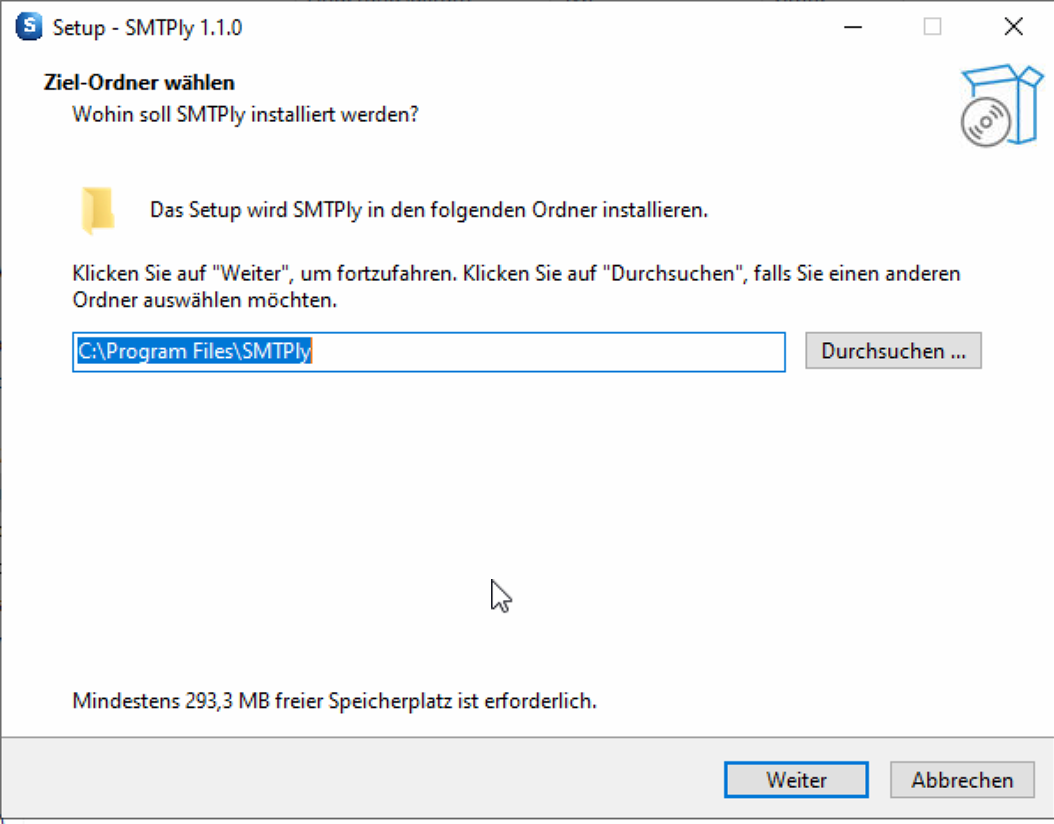 Step 1: Destination folder. Accept the default and click „Next".
Step 2 — Additional tasks
The wizard offers two options, both enabled by default:
- Create a desktop icon — places a shortcut to the GUI on your desktop.
- Install and start Windows service „Smtply" — registers and launches the background service so the relay keeps running regardless of who is logged in. Leave this enabled — without the service you would need to keep the GUI open at all times.
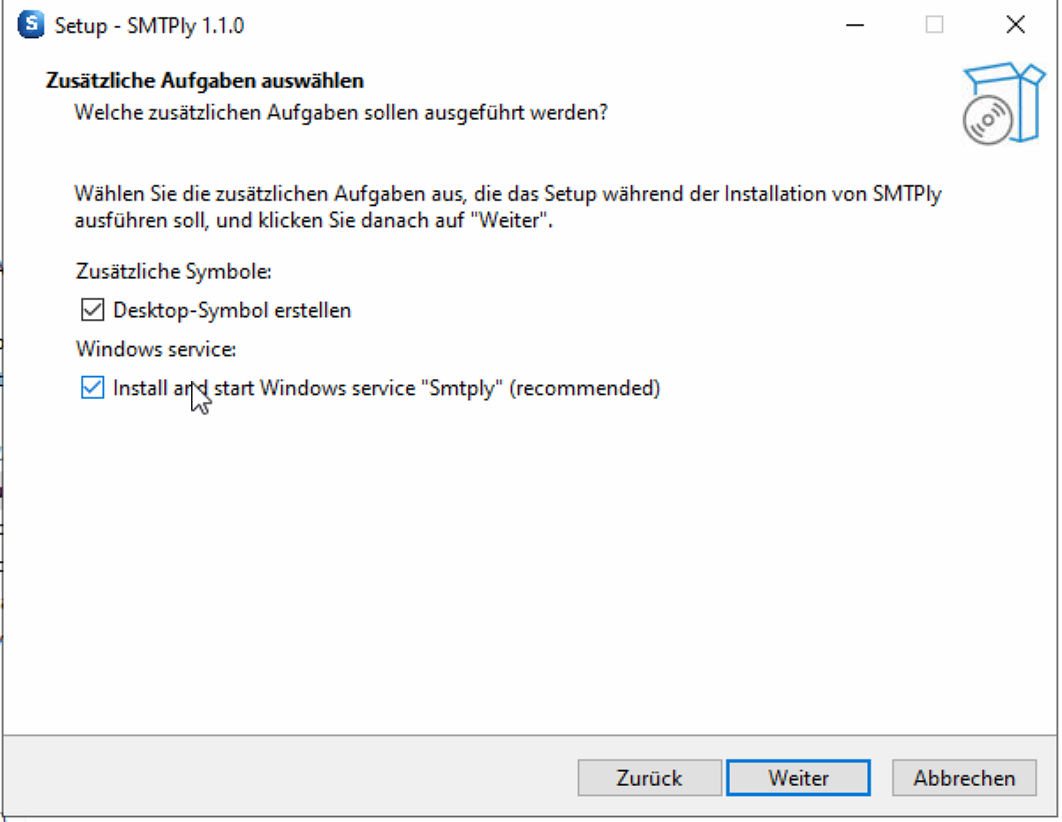 Step 2: Additional tasks. The service installation briefly triggers a UAC prompt during execution.
Step 3 — Ready to install
Review the summary and click Install. The actual installation usually takes under a minute.
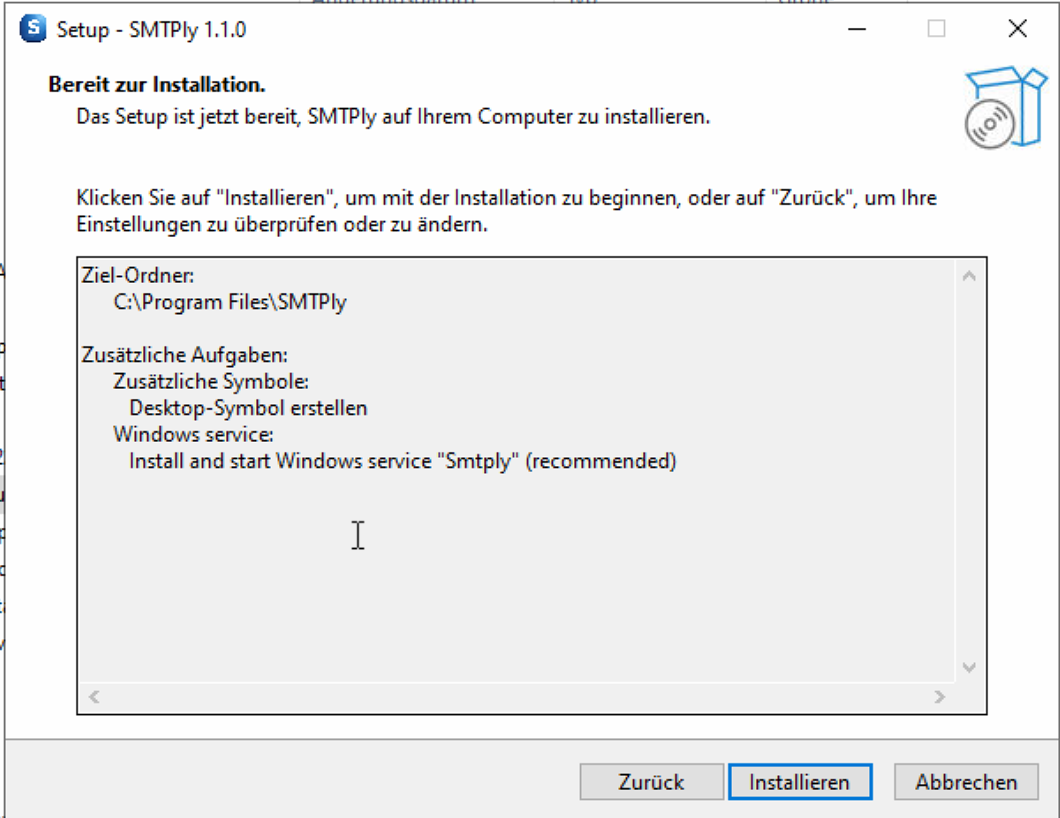 Step 3: Summary before copying files.
Step 4 — Finish
After a successful install you can launch SMTPly straight away. The Launch SMTPly checkbox is pre-selected — after clicking Finish, the GUI opens automatically and, on first start, jumps directly into the settings so you can enter your Azure app details.
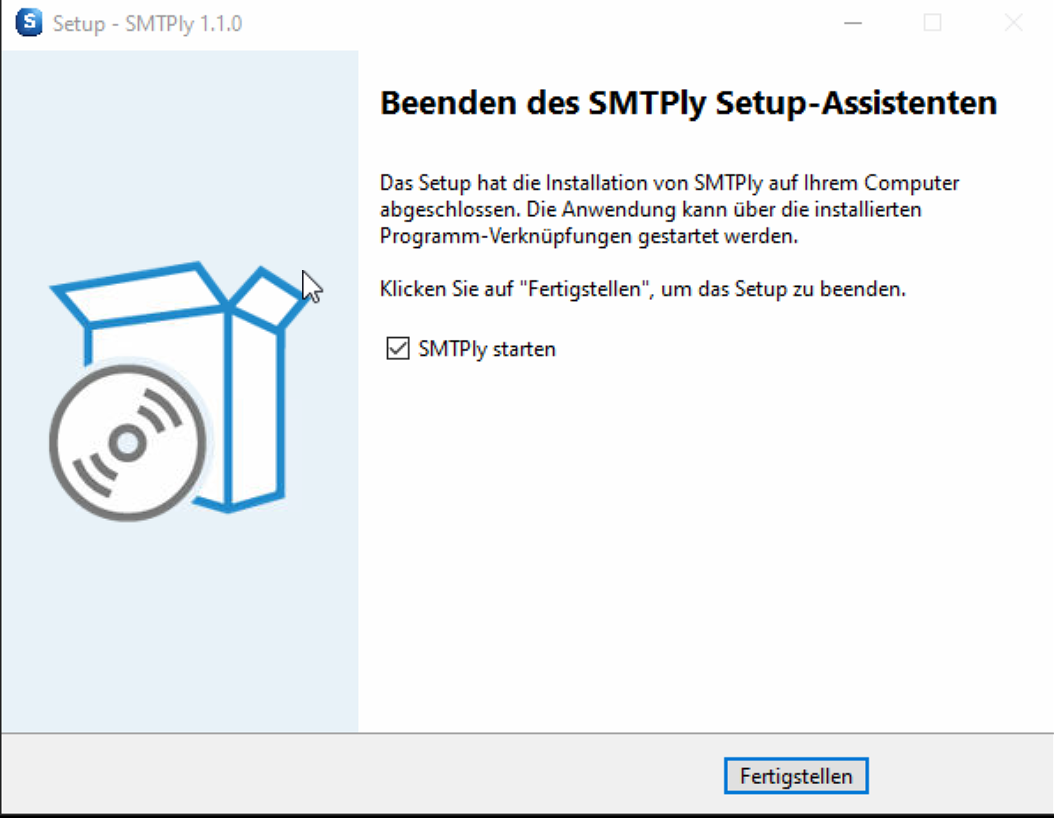 Step 4: Installation complete. Launch straight away and continue with the Azure configuration.
All components are placed under C:\Program Files\SMTPly\, configuration and logs under C:\ProgramData\Smtply\. The service runs as Smtply under the LocalSystem account and starts automatically with Windows.
Verify integrity
The SHA-256 checksum of each released version is listed in the release entry and on the download page. Verify your download before installing with:
Get-FileHash -Algorithm SHA256 .\SMTPly-Setup-latest.exeRegister the Azure app
SMTPly authenticates with Microsoft Graph via an Azure app registration using the client credentials flow. That means: no user login, the app sends on behalf of a configured sender address. The following step-by-step guide takes about 10 minutes. Click any screenshot to view it full-size.
Step 1 — Create a new app registration
- Open the Entra admin center as global administrator.
- Navigate to Identity → Applications → App registrations.
- Click + New registration.
- Name: e.g.
SMTPly Relay. - Supported account types: Accounts in this organizational directory only.
- Redirect URI: leave blank.
- Click Register.
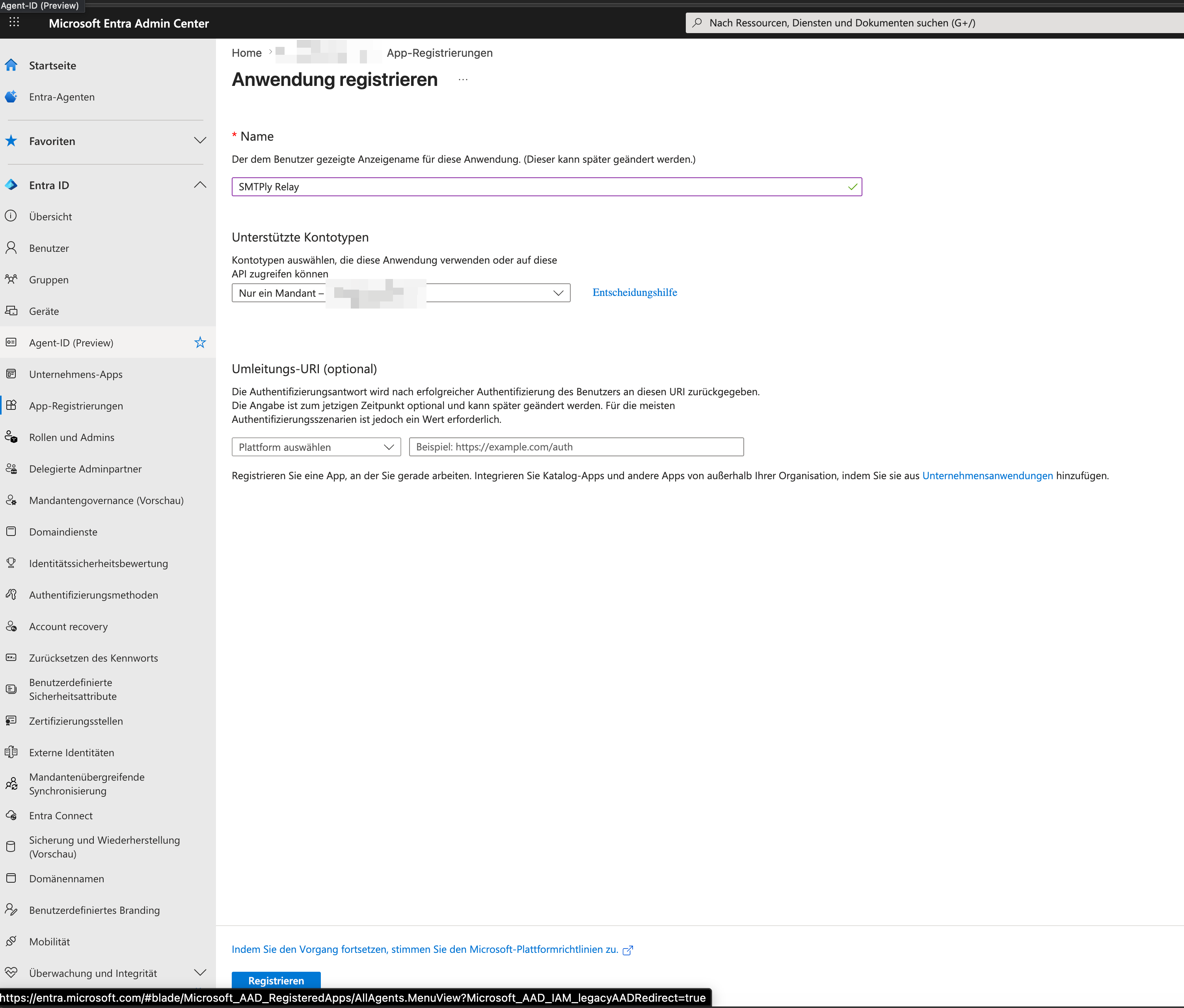 Step 1: New application registration form in the Entra admin center.
Step 2 — Note tenant ID and client ID
After registration you land on the app overview page. Write down two values that SMTPly needs later:
- Application (client) ID — the GUID of your app registration
- Directory (tenant) ID — the GUID of your tenant
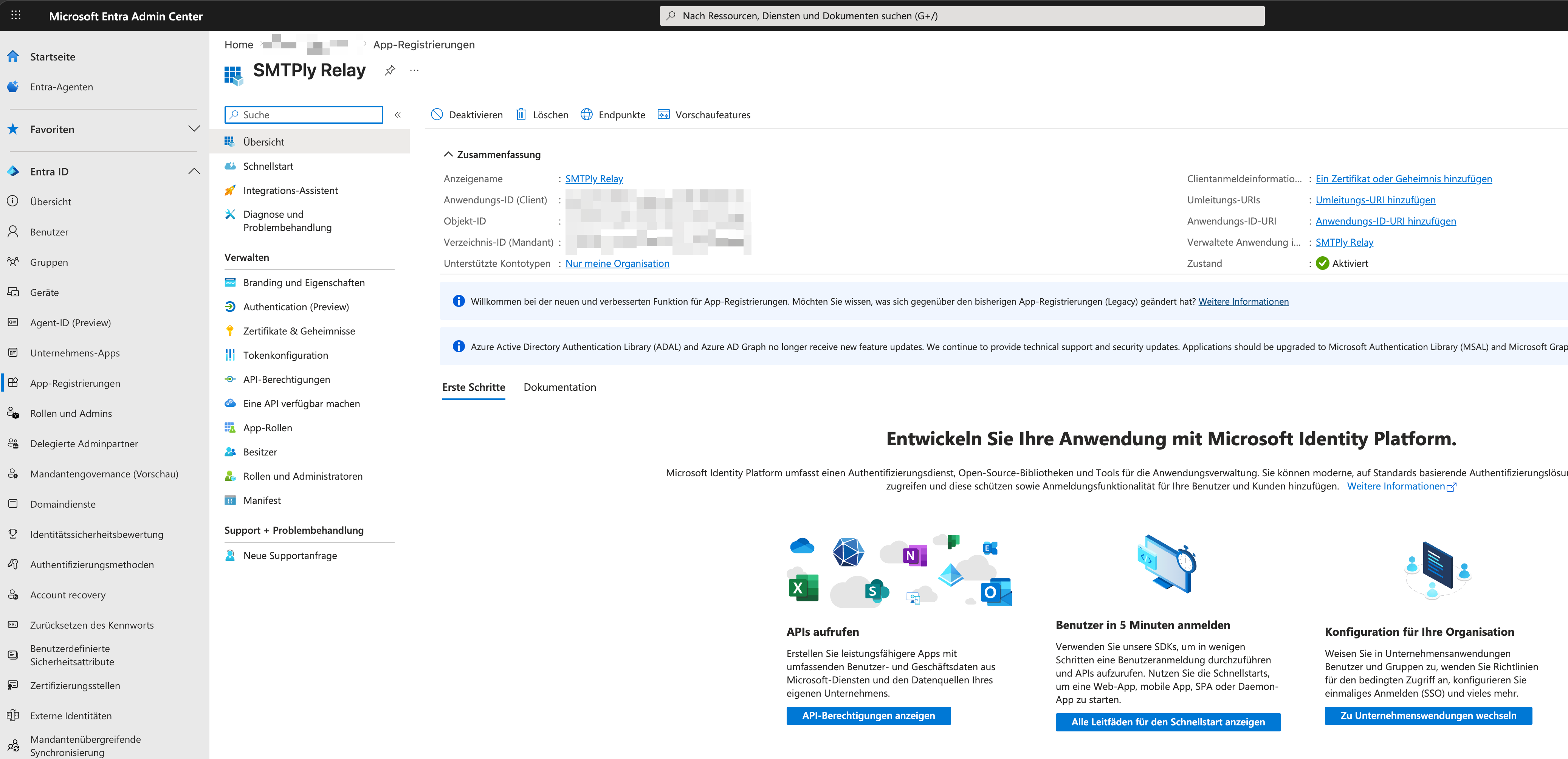 Step 2: App overview. Both GUIDs on the right are entered into SMTPly later.
Step 3 — Create a client secret
- In the left navigation: Certificates & secrets.
- Tab Client secrets → + New client secret.
- Description:
SMTPly Production(or any name you like). - Expiry: 24 months recommended (longer lifetimes avoid maintenance interruptions).
- Click Add.
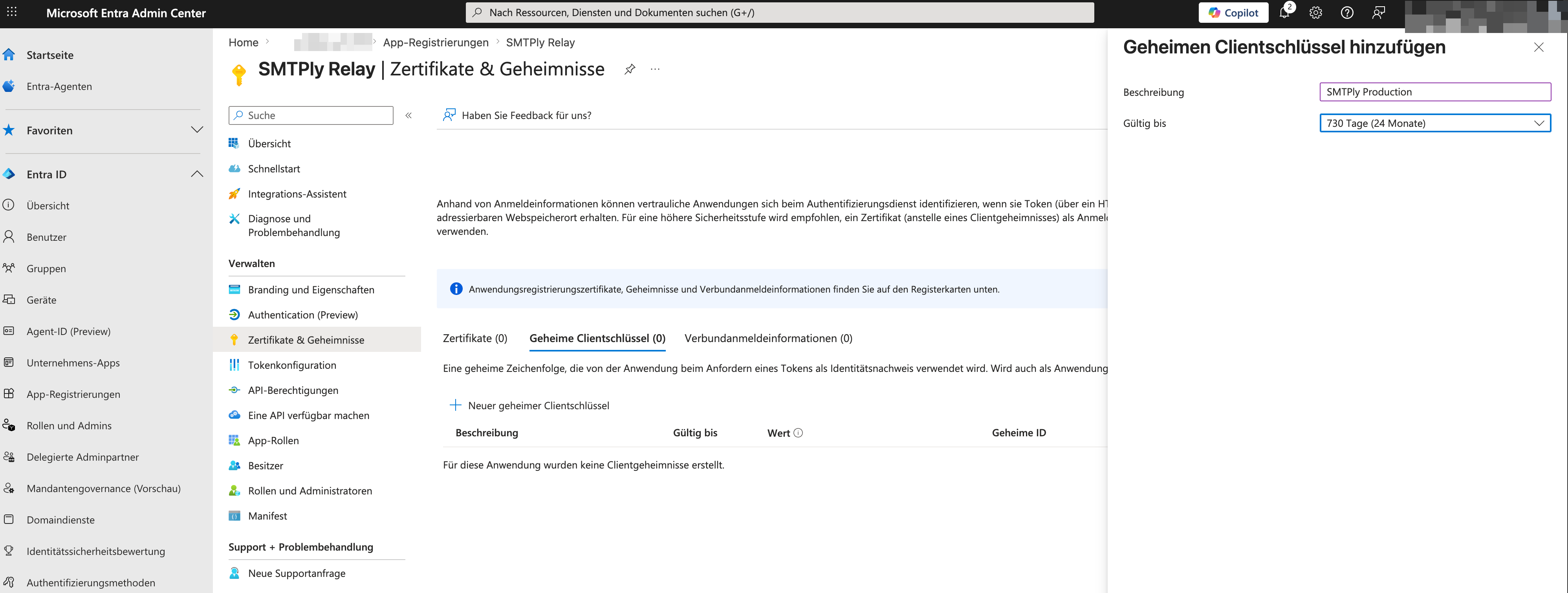 Step 3: Create a new client secret with a 24-month lifetime.
Step 4 — Copy the secret value immediately
After creation the value is displayed once in plain text. Copy it now — after navigating away it is no longer visible, only the first/last characters remain.
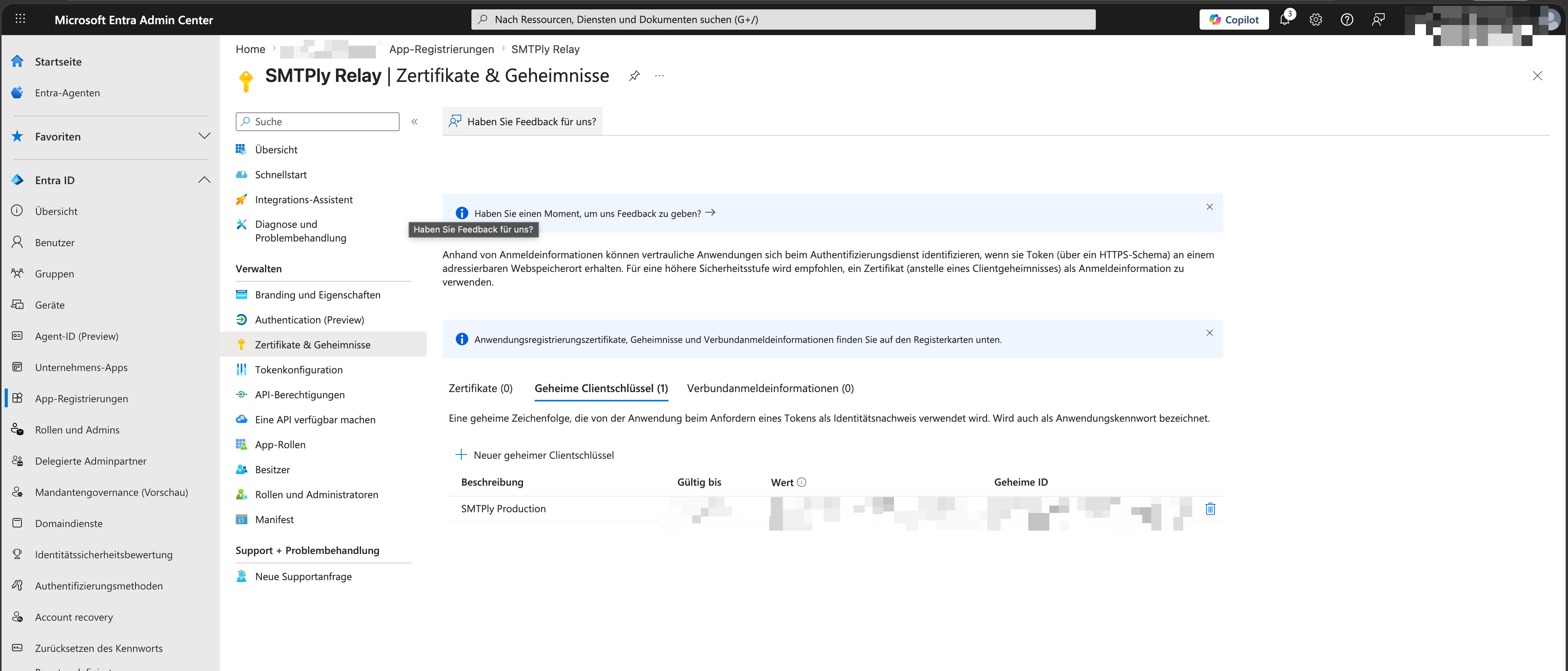 Step 4: The value in the „Value" column is shown only once. Copy it now!
Important: Note the expiry date of the secret. SMTPly warns in the GUI 14 days before expiry by default and can additionally send an email notification — you can update the value later in settings.
Permissions & admin consent
Step 5 — Add an API permission
- In the left navigation: API permissions.
- At the top click + Add a permission.
- In the right panel select Microsoft Graph.
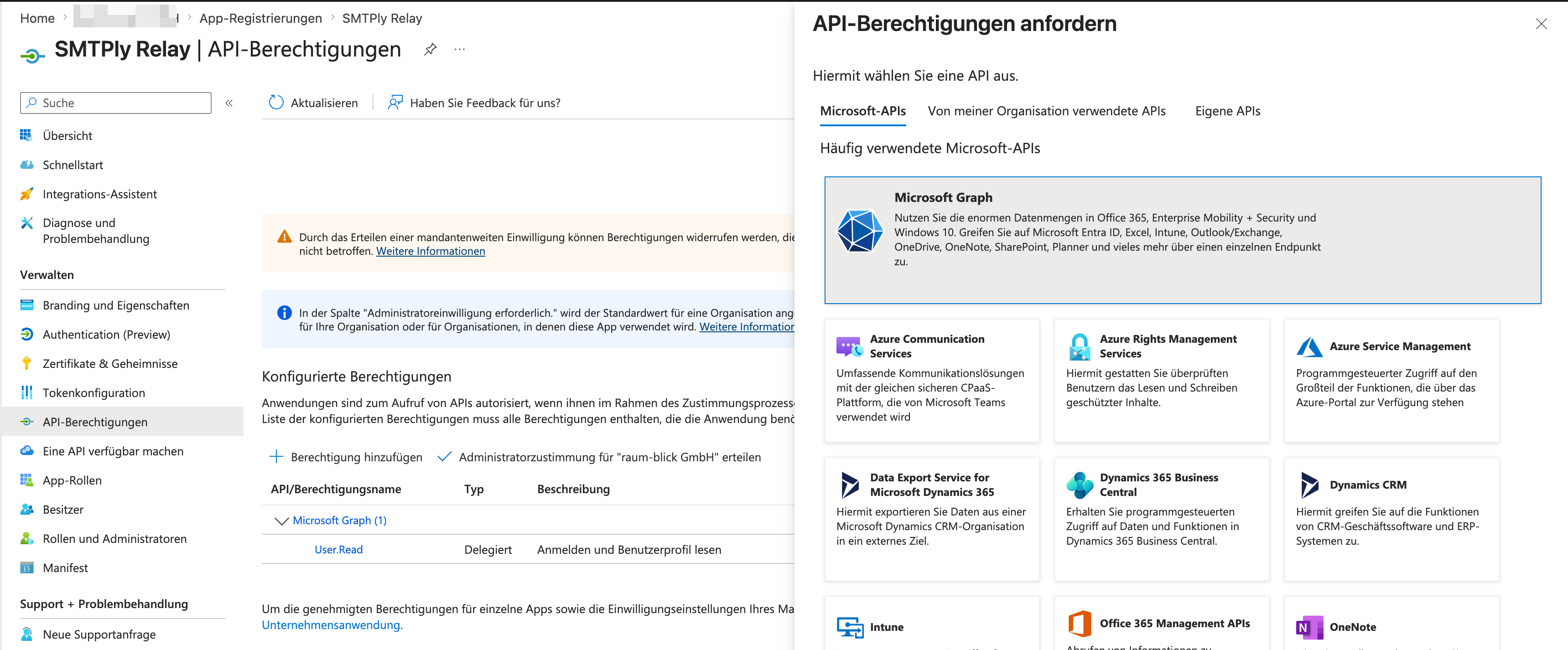 Step 5: Select Microsoft Graph as the API.
Step 6 — Choose „Application permissions"
SMTPly runs as a background service without a signed-in user, so it needs application permissions (not „Delegated permissions"). This choice is critical — with delegated permissions the relay would not work.
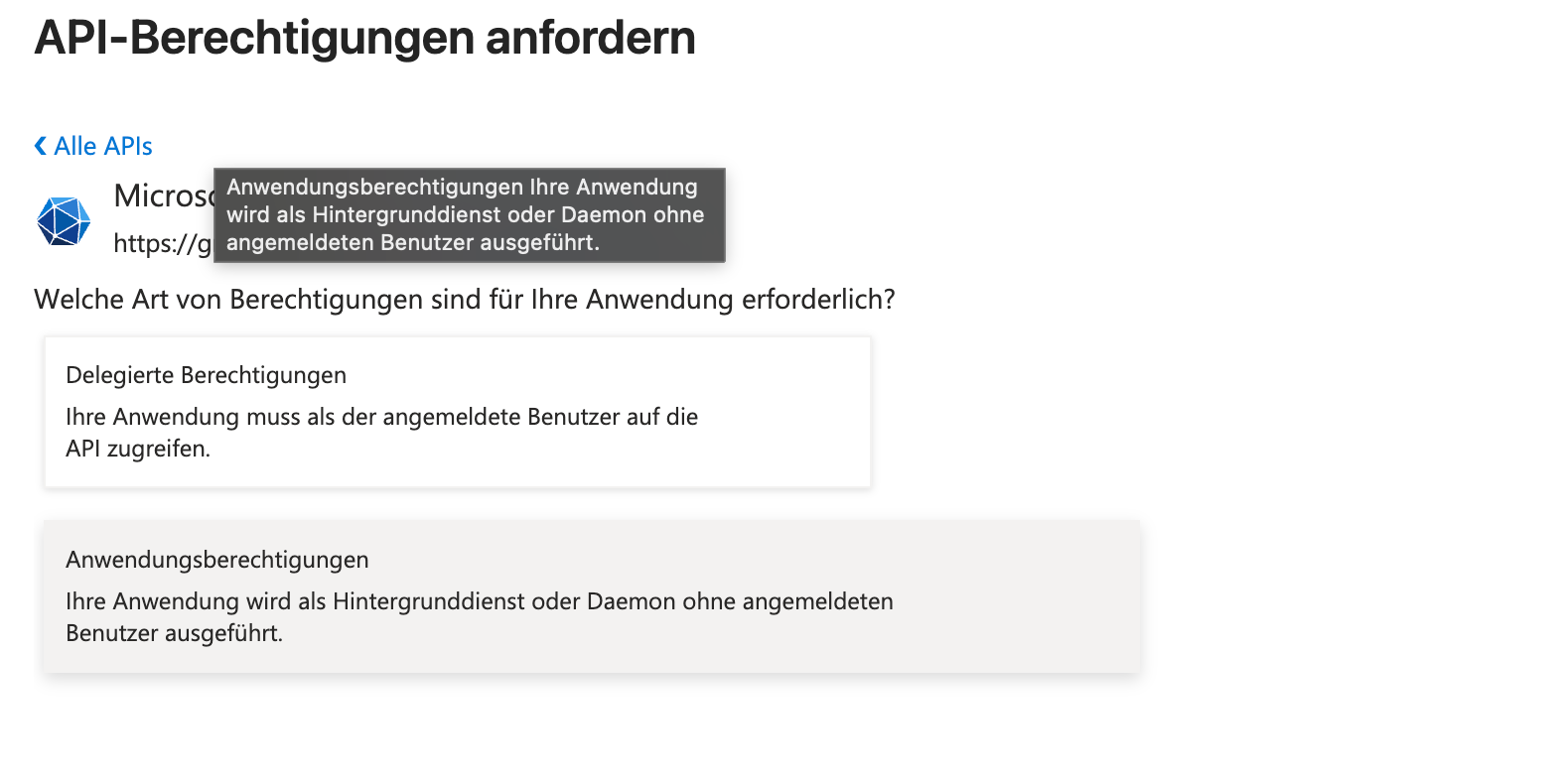 Step 6: Select „Application permissions" (not „Delegated permissions").
Step 7 — Enable Mail.Send
In the search field type mail.send. Under Mail the permission Mail.Send appears — tick the checkbox and click Add permissions at the bottom.
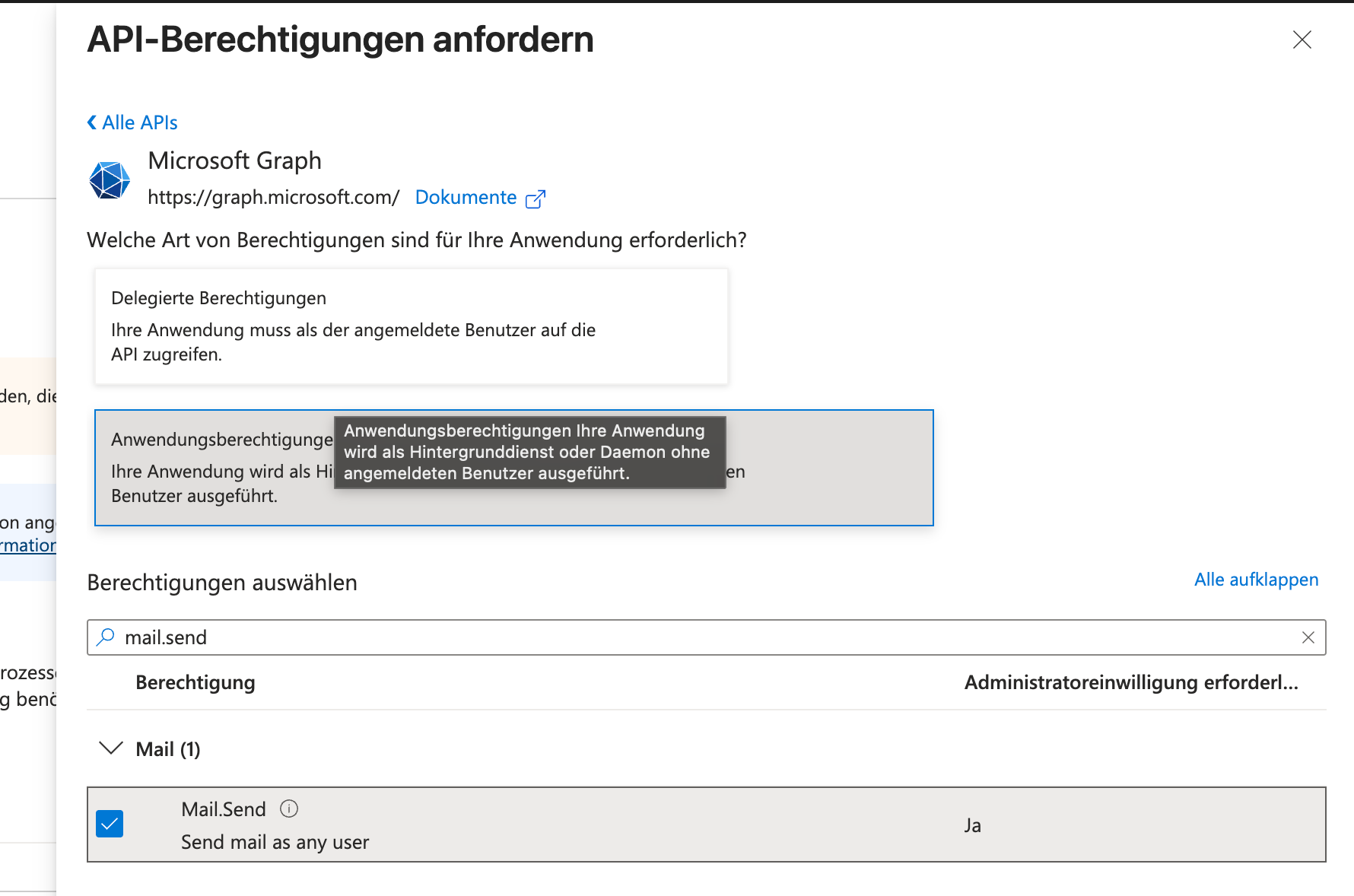 Step 7: Tick Mail.Send. Description: „Send mail as any user".
Step 8 — Grant admin consent
Back on the API permissions page: the status of Mail.Send initially shows „Admin consent required". Click Grant admin consent for <your tenant> at the top and confirm. The status switches to Granted (green check mark).
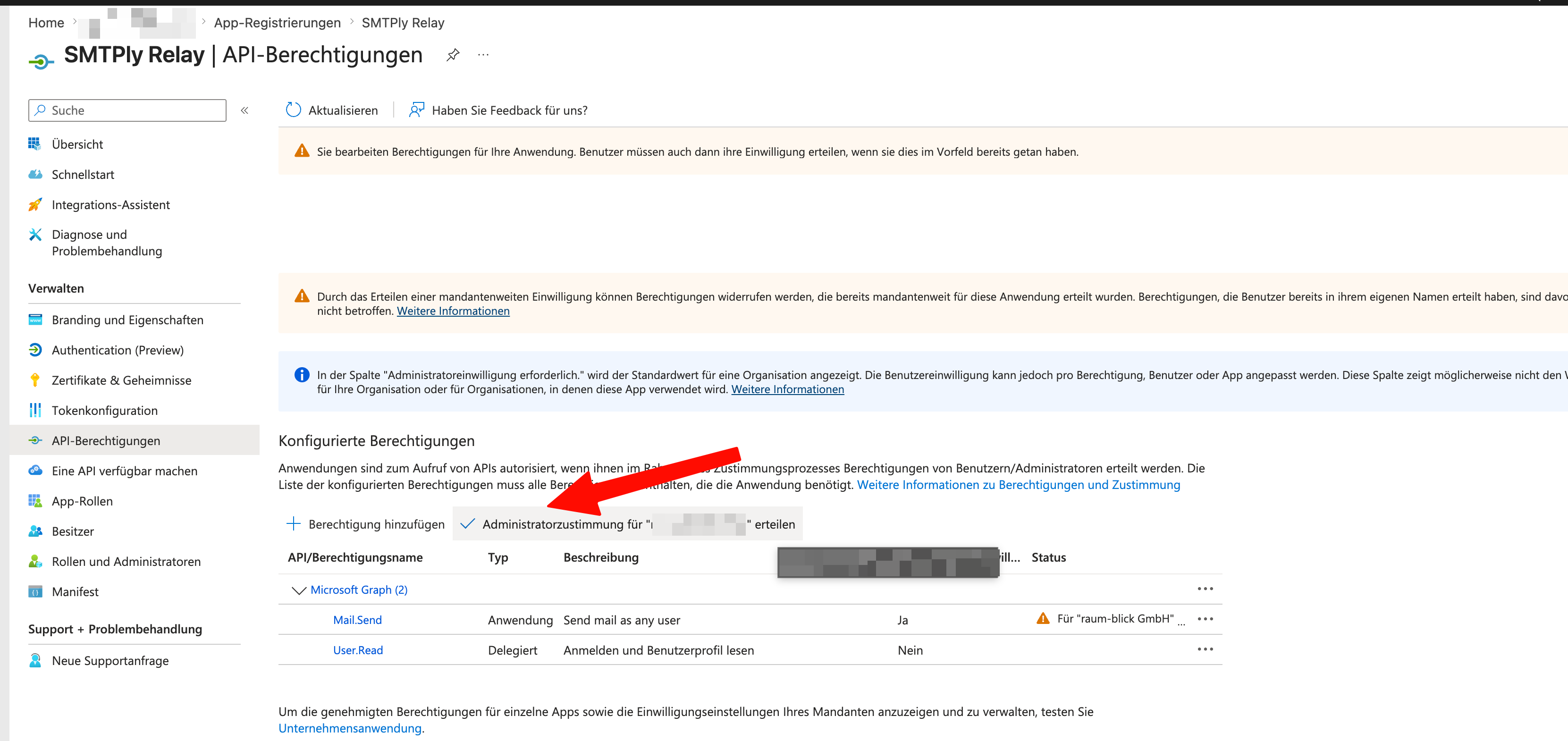 Step 8: Grant admin consent. Without this step the app cannot send mail.
Optional: restrict send-as. By default, the app can send from any mailbox in the tenant. For least-privilege, use an application access policy to narrow it down to exactly the desired mailbox — recommended for production setups.
Optional: restrict send-as. By default, the app can send from any mailbox in the tenant. For least-privilege, use an application access policy to narrow it down to exactly the desired mailbox — recommended for production setups.
Values needed for SMTPly
| Field in SMTPly | Location in Azure |
|---|---|
| Tenant ID | App overview → Directory (tenant) ID |
| Client ID | App overview → Application (client) ID |
| Client secret | Certificates & secrets → Value (visible only once) |
| Sender address | A valid M365 mailbox in the tenant, e.g. [email protected] |
First start & setup wizard
On first launch the wizard guides you through these sections:
- Microsoft 365 — enter Azure details, send a test connection.
- SMTP listener — set port, bind address, max size.
- STARTTLS (optional) — choose or generate a certificate.
- IP whitelist — which devices are allowed to relay.
- Privacy — logging behavior for subject, addresses, rejected mails.
- Start service — the Windows service goes live.
All settings can be changed later via the "Settings" navigation item.
Settings in detail
Microsoft 365
| Setting | Meaning |
|---|---|
| Tenant ID | GUID of your Azure tenant — see Entra admin center. |
| Client ID | GUID of your app registration. |
| Client secret | Stored DPAPI-encrypted. Leave empty = no change. |
| Sender address | Default/override MAIL FROM. Must be a valid M365 mailbox. |
| Always override sender | When active, the client's MAIL FROM is ignored and replaced by the sender address. Useful when devices send incorrect FROMs. |
| Allowed domains | Only mails with FROM @thisdomain.tld are permitted. Empty = only the sender address's domain. |
SMTP listener
| Setting | Meaning |
|---|---|
| Port | 25 for internal legacy devices, 587 for officially compliant submission. Freely choosable. |
| Bind address | 127.0.0.1 (local only), 0.0.0.0 (all interfaces), or a specific LAN IP. |
| Max message size | Default 25 MB. Larger mails are rejected with SMTP 552. Graph accepts up to 150 MB. |
| Allowed source IPs | Whitelist of single IPs or CIDR ranges. 192.168.1.0/24 allows the entire /24 network, for example. |
| Open mode | Whitelist disabled, any IP can relay. Only use in trusted networks. |
STARTTLS
Disabled by default — legacy devices on the LAN typically don't require TLS. Enable STARTTLS if your devices request it.
- Self-signed — SMTPly generates a 10-year certificate. Legacy clients usually ignore missing CA trust automatically.
- PEM files — e.g. Let's Encrypt output
fullchain.pem+privkey.pem. - PFX / PKCS#12 — prebuilt container format with password.
Mail log privacy
| Setting | Meaning |
|---|---|
| Store subject | When off, subjects in the mail tracker are replaced by ***. |
| Store addresses | When off, sender/recipient are replaced by ***. |
| Log rejected mails | When off, IP-blocked or oversized mails do not appear in the tracker. The system log still records them. |
| Masking | None = plain text. Partial = m**l@e*****e.com and subject truncated to 15 characters + "…". |
Retention
Log files and mail tracker DB have separate retention periods. Both fields use the same sentinel scheme:
-1= do not store (completely disabled)0= unlimited (never deleted automatically)N > 0= N days, older entries are deleted automatically
Predefined options: 7 / 14 / 30 / 60 / 90 / 180 / 365 days. Defaults are 7 days (logs) and 14 days (mail tracker).
Limits
| Limit | Value | Source |
|---|---|---|
| Max message size | 25 MB (SMTPly default) — configurable up to 150 MB | Graph /sendMail |
| Max recipients per mail | 500 (Exchange Online) | Microsoft |
| Mails per day / mailbox | 10,000 (Exchange Online) | Microsoft |
| API rate limit | 10,000 requests / 10 min per app / tenant | Graph throttling |
| Licensed mailboxes | 1 (Starter) — further editions on request | SMTPly license |
SMTPly honors all Graph throttling hints — when Microsoft sends a Retry-After header, the queue automatically respects it and waits accordingly.
Licensing
SMTPly is offered as a one-time purchase with a per-server bound license. Activation takes place online via the Polar license system.
- 14-day trial — full functionality, no limits, starts automatically on first launch.
- Activation — paste license key into GUI → "License" and confirm.
- Hardware binding — fingerprint from CPU and motherboard identifiers. Migration requires prior deactivation.
- Offline grace — after successful activation, SMTPly runs up to 30 days without an internet check.
- Deactivation — GUI → "License" → "Deactivate". Afterwards the key can be activated elsewhere.
Troubleshooting
"HTTP 401 Unauthorized" in the log
Client secret expired or entered incorrectly. Check validity in the Entra admin center and enter a new value in SMTPly settings if needed.
"HTTP 403 Forbidden"
Admin consent for Mail.Send is missing, or an application access policy restricts the app. Check the status of the API permissions in the app registration.
"HTTP 429 Too Many Requests"
The tenant rate limit was reached. SMTPly automatically waits for the Retry-After interval and retries afterwards. No action needed.
Printer reports "Connection refused"
Check: (a) is the service running? (Services MMC or dashboard). (b) Bind address — with 127.0.0.1 the port is only reachable locally; set to the LAN IP or 0.0.0.0. (c) Windows firewall — explicitly open the port.
"Not a valid M365 mailbox"
The sender address must be a licensed Exchange Online mailbox — shared mailboxes work, distribution lists do not. Guest accounts and unlicensed users also fail.
FAQ
Can SMTPly replace the IIS SMTP service / IIS 6.0 SMTP relay?
Yes — this is one of the most common use cases. Microsoft has officially marked the IIS 6.0 SMTP service as deprecated. It is still bundled with Windows Server 2025, but slated for removal in future releases. On top of that, it can't do OAuth2: forwarding mail through Exchange Online requires Basic Auth — which Microsoft is shutting down for good by December 2026.
SMTPly is the modern answer for that exact scenario: same role (local SMTP relay for printers, ERP systems, scanners and line-of-business software), but with OAuth2 translation to Microsoft Graph, a GUI, a mail tracker, retry logic, and an actively maintained codebase. Migration is straightforward: stop the IIS SMTP service, install SMTPly, keep the bind port at 25 (or 587), and your devices keep their existing target IP — done.
Does SMTPly also run without a Windows service?
Yes — you can simply start Smtply.exe as a desktop application. The relay then runs as long as the GUI is open. For production 24/7 operation, the service variant is better: no logged-in user needed, auto-start with Windows.
Can I serve multiple tenants with one SMTPly installation?
Yes, starting with the Business edition. Business (€249) relays through up to 5 Microsoft 365 tenants in parallel on one Windows server, Enterprise (on request) 10+. Routing is selectable per tenant: by sender domain (mail from [email protected] goes via the "Firma 1" tenant) or by AUTH-user binding (an authenticated SMTP user is pinned to one specific tenant).
The Starter edition (€149) supports exactly one tenant. To upgrade from Starter to Business: purchase a Business license, activate the new key on the License settings page — the multi-tenant UI unlocks immediately, and the existing single-tenant configuration is preserved as "Primary tenant".
Can I authenticate SMTP senders with username and password?
Yes. SMTPly supports AUTH LOGIN and AUTH PLAIN on the listener since v1.5.4. Passwords are stored as PBKDF2-SHA256 hash with per-user salt — not recoverable, not even by the admin. Three sub-modes:
- AUTH off (default): senders are gated by the IP allow-list only.
- AUTH offered: AUTH is advertised in EHLO. Authenticated senders get priority routing; senders without AUTH fall back to the IP/domain allow-list.
- AUTH required: unauthenticated MAIL FROM is rejected with SMTP 530.
STARTTLS is required by default for plaintext passwords; an explicit "Allow plaintext AUTH without TLS" toggle exists for legacy devices that cannot do STARTTLS — opt-in only, with a clear warning.
Is there a Linux version?
Currently no — SMTPly is Windows-native (DPAPI, Windows service, WPF). A Linux variant is not on the roadmap. For mixed environments, a Windows server as dedicated relay host is the simple solution.
Windows warns me the file is "not commonly downloaded" — is it unsafe?
No, that's a SmartScreen reputation warning, not a malware detection. Microsoft Defender SmartScreen blocks any file by default until it has built up enough download reputation — every brand-new release has a fresh hash and triggers this warning. It fades automatically once enough users have downloaded and run the same file.
How to run the installer anyway:
- Browser download: click "Keep" → "Keep anyway".
- On launch: "Windows protected your PC" → "More info" → "Run anyway".
Real trust verification instead of blind SmartScreen clicks: Compare the SHA-256 of your downloaded installer against the hash published on the Download page and in every GitHub release:
Get-FileHash SMTPly-Setup-latest.exe -Algorithm SHA256If the hashes match, your file is bit-identical to what we built and published. SmartScreen reputation is a heuristic signal — SHA-256 is cryptographically unambiguous.
Why no signature yet? Code-signing certificates are a small but recurring cost we have deliberately not budgeted yet as a solo vendor. While the user base stays compact, SHA-256 verification is more honest than a certificate. An OV code-signing certificate is on the roadmap and will be added as soon as it's economically reasonable — the build pipeline is already wired to slot in a sign step without changing the installer layout.
How do I upgrade to a new version?
Just run the new installer. It detects the existing install, replaces the binaries and keeps configuration, license and logs under %ProgramData%\Smtply\ unchanged. From version 1.3.0 on, SMTPly proactively notifies you about available updates — the public release API is checked once per day and release notes are shown directly on the „About" page.
Do I get notified when the Azure client secret is about to expire?
Yes, if you enter a recipient address under Settings → Microsoft 365 → E-mail notifications. SMTPly then sends a warning mail to that address as the expiry date approaches. The warning is sent from the same e-mail address that is configured for the mail relay.
By default the first warning is triggered 14 days before expiry (configurable). Additional warnings follow automatically at 7, 3, 1 and 0 days remaining — each threshold fires exactly once. Once the secret has expired, no more e-mails are sent because Microsoft 365 authentication stops working at that point; the colour-coded warning in the Microsoft 365 settings of the GUI remains visible.
Can I get a usage report by email on a regular basis?
Yes. Under Settings → Microsoft 365 → E-mail notifications, in addition to the secret-expiry warning, you can pick a report cadence: daily, weekly or monthly. The report is sent to the same notification address and contains totals (sent / failed / rejected), average delivery time, top senders, top recipient domains and the most common error reasons for the period.
The report respects your privacy settings — with masking enabled it shows masked addresses, with "Log addresses" disabled the top-lists are omitted entirely. You can switch the report off at any time with the "No reports" option.
Are email contents stored?
No. SMTPly stores only metadata (timestamp, addresses, subject, size, status) in the mail tracker — body and attachments are discarded immediately after successful relay or final failure (GDPR data-minimisation).
What happens if Microsoft Graph is down — or the server reboots?
Incoming mails land in a local, persistent queue (queue.db) before they reach the in-memory send queue. If Graph has a hiccup, exponential backoff handles it; if the Windows service restarts (or the whole server), SMTPly reloads the pending entries on startup and delivers them automatically. Only after a successful send — or a final failure — is the raw payload deleted.
During a Graph outage the GUI dashboard shows a warning banner; a circuit breaker prevents pointless retries from burning tokens.
Can I use SMTPly in regulated industries (healthcare, legal, finance)?
Yes — SMTPly was deliberately designed so that no data flows to third parties. Processing stays within your existing M365 contractual relationship. Still, verify your internal compliance (e.g. whether legacy devices may send personal data at all).
Contact
Support requests, feature suggestions or Enterprise edition inquiries:
- Email: mail@hpn.io
- Web: www.it-consulting.com
- Mail: IT Beratung – Andreas Hähnel, Neukircher Str. 3, 74357 Bönnigheim, Germany